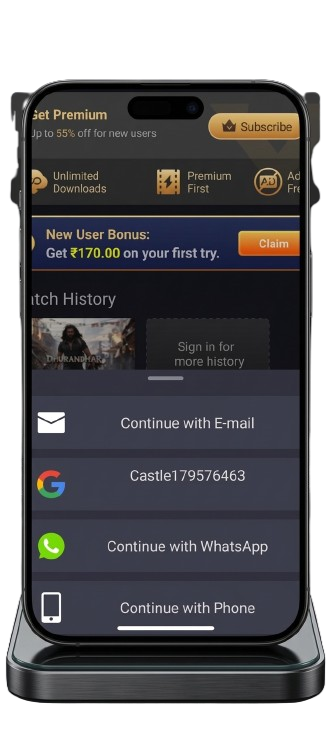
Castle APK login issues are frustrating — you open the app expecting to stream content, but instead get a “Login Failed” error, a screen that spins endlessly without loading, or a message saying the server is not responding. In some cases the app opens but refuses to accept correct credentials.
This guide covers 7 specific fixes for every Castle App login problem, organized by error type so you can identify your exact issue and apply the right solution without wasting time on irrelevant fixes.
Before diving in, it is worth understanding that login issues are among the most common problems reported after Castle APK updates — so if your issue started right after installing a new version, that context will help you choose the right fix first.
For background on potential privacy considerations before using Castle APK, read our Castle APK privacy risks guide.
Quick Diagnosis — Find Your Fix Fast
| Error You See | Most Likely Cause | Go To |
|---|---|---|
| “Login Failed” message | Wrong credentials or server issue | Fix 1, Fix 4 |
| Spinning / loading forever | Internet or server problem | Fix 1, Fix 4 |
| “Server Not Responding” | Server down or overloaded | Fix 4 |
| “Invalid Username or Password” | Incorrect details or account issue | Fix 1, Fix 3 |
| Login screen appears but won’t proceed | Cache conflict or corrupted data | Fix 3 |
| Login works but account won’t load | App version or cache issue | Fix 2, Fix 3 |
| Login blocked in your country | Region restriction | Fix 5 |
| Login fails only after reinstall | Fresh install needs updated version | Fix 2 |
Why Castle App Login Issues Happen
Understanding the root cause helps you fix it permanently rather than applying temporary patches.
Server overload during peak hours is the most frequent cause of sudden login failures that were not there before. Castle APK servers handle a very large number of simultaneous users, and during evening hours, major sports events, or immediately after a new version release, servers sometimes cannot process all login requests quickly. This causes the “Server Not Responding” or “Login Failed” error even when your credentials are completely correct.
Cache conflict after an update happens when you install a new version of Castle APK over an old one without clearing cached data first. The login session stored by the old version is incompatible with the new version’s authentication system, causing login requests to fail even with correct credentials.
Outdated app version creates login problems when Castle APK servers update their authentication protocol and older app versions can no longer communicate with it correctly. Version 2.1.1 uses updated server communication that 2.0.9 and earlier versions may not fully support.
Region restrictions cause login failures in certain countries where Castle APK’s servers are blocked at the ISP level. In these cases the login request never reaches the server — the connection is intercepted before it gets there. A VPN bypasses this by routing your traffic through a server in an unrestricted region.
Incorrect credentials are a simple but often overlooked cause. Password fields in Castle APK are case-sensitive, and auto-fill on some Android versions inserts extra spaces or incorrect characters that cause an “Invalid Password” error even when you believe you are entering the right details.
Temporary account issues sometimes occur server-side when the Castle APK backend experiences a problem specific to certain accounts. This is less common but causes cases where some users can log in fine while others cannot.
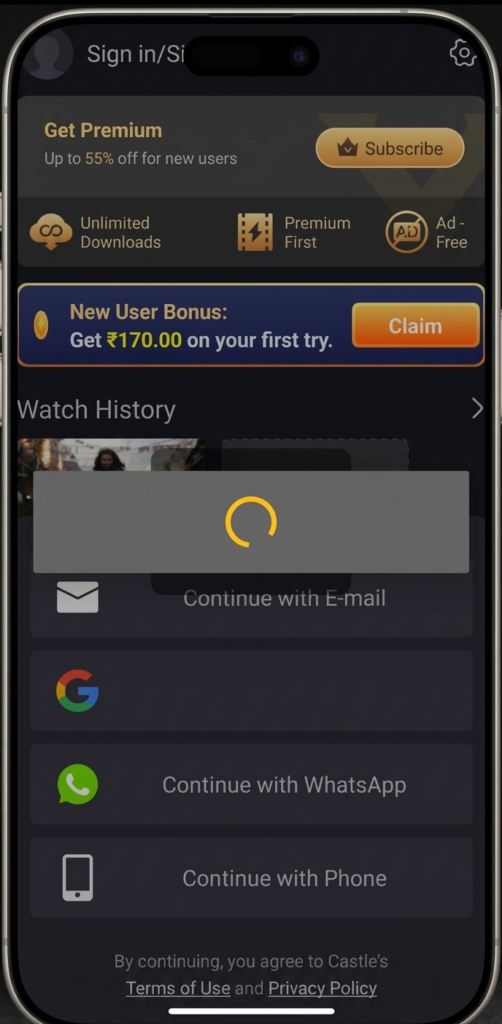
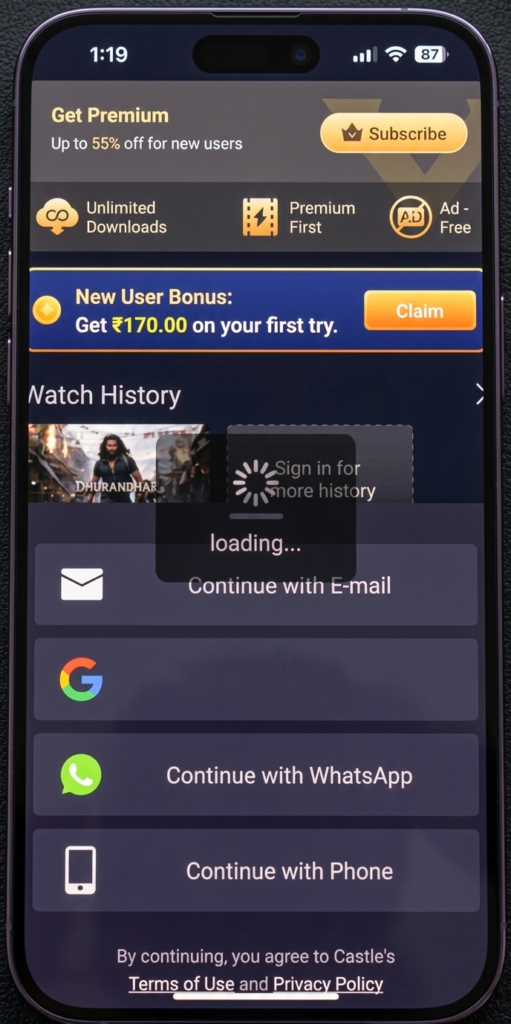
How to fix castle app login issues
Fix 1 — Verify and Correct Your Login Credentials
Before assuming a technical issue, confirm your credentials are being entered correctly. This resolves a significant portion of “Invalid Username or Password” errors.
Steps:
- Tap the Password field and verify the text cursor is positioned correctly before typing — some Android keyboards insert the cursor in the middle of a previously cached password
- Tap the eye icon in the password field to reveal what you are typing — confirm each character is correct
- Check that your Caps Lock is off — many Android keyboards show a caps indicator but it can be easy to miss
- Delete the contents of both fields completely and type your credentials fresh — do not use autofill for this test
- Check that there are no trailing spaces after your username or password — these are invisible but cause authentication to fail
- Try logging in with your email address if you normally use a username, or vice versa — some accounts accept both
If you have forgotten your password:
Use the Forgot Password option on the login screen. You will receive a reset link at your registered email address. Check your spam folder if the email does not arrive within 5 minutes.
If you have never created an account:
Some Castle APK versions allow streaming without an account. Tap the Guest or Continue Without Login option if it appears on the login screen. Note that guest access may have limited features compared to a registered account.
Fix 2 — Update to Castle APK 2.1.1
Running an outdated version is one of the most common causes of login failures that appear without any change in your credentials or network. Castle APK servers periodically update authentication protocols, and older app versions lose compatibility.
Your post mentions version 2.1.0 — the current release is 2.1.1, which includes login stability improvements specifically noted in the changelog.
Steps:
- Do not uninstall your current version yet — installing the new version over it preserves your login session
- Visit our Castle APK 2.1.1 update guide to get the correct download
- Download the 2.1.1 APK file — verify the size is approximately 57.3 MB
- Open your File Manager → Downloads → tap the file
- Tap Install — Android will install it over your existing version
- After installation, tap Open
- The app should log you in automatically using your saved session. If not, enter your credentials on the fresh login screen
If you are on 2.1.0 and the update to 2.1.1 does not fix login:
Clear the app cache after updating (see Fix 3 below) — sometimes the old version’s cached login data conflicts with the new version’s authentication system even after updating.
Fix 3 — Clear Cache and App Data
Corrupted cached data is the second most common cause of Castle App login issues, especially after updates. Old login tokens and session data from a previous version can prevent the new version from authenticating correctly.
This fix does not delete your account. Your account is stored on Castle APK servers. Clearing cache and data only removes local temporary files — you will need to log in again afterward.
Steps for Android:
- Open Settings on your device
- Tap Apps (or Application Manager)
- Scroll down and select Castle APK or Castle App
- Tap Storage
- Tap Clear Cache — wait 5 seconds
- Tap Clear Data — confirm in the popup
- Restart your device completely
- Open Castle APK and log in fresh with your credentials
Steps for Firestick:
- From the home screen, go to Settings
- Select Applications → Manage Installed Applications
- Select Castle APK
- Tap Clear Cache → wait 5 seconds
- Tap Clear Data → confirm
- Restart your Firestick (hold power button → Restart)
- Open Castle APK and log in
Steps for Smart TV:
- Go to Settings → Apps → See All Apps → Castle APK
- Select Clear Cache → then Clear Data
- Restart your TV using the power button (full shutdown, not standby)
- Open Castle APK and log in
Expected result: The app opens to a fresh login screen. Enter your credentials — if the server is accessible and your credentials are correct, you should log in successfully.
Fix 4 — Check and Wait for Server Recovery
If Fix 1 and Fix 3 did not work and your credentials are definitely correct, the Castle APK server may be temporarily unavailable. This is especially common in these situations:
- In the first 1-2 hours after a new version release
- During major live sports events when server load spikes
- During scheduled or emergency maintenance periods
How to confirm it is a server issue:
- Try logging in on a different device using the same account — if both fail with the same credentials, the issue is server-side
- Check Castle APK communities on Reddit (r/androidapps) or Quora for reports of others experiencing the same issue simultaneously
- Try connecting through a different internet connection — switch from Wi-Fi to mobile data or use a friend’s hotspot
What to do during a server outage:
- Wait 30 to 60 minutes and try again — most Castle APK server issues resolve within this window
- Do not repeatedly tap the login button — this does not speed up recovery and may temporarily flag your account for unusual activity
- Check back every 15-20 minutes rather than leaving the login screen open
Server-side login issues are temporary and resolve without any action on your end. No amount of reinstalling or cache clearing will fix a server-side outage faster.
Fix 5 — Use a VPN to Bypass Region Restrictions
In certain countries, internet service providers block connections to Castle APK servers at the network level. When this happens, login requests are intercepted before they reach the server — which causes login failures that look identical to server errors but do not resolve on their own.
Signs that region restriction is causing your login issue:
- Login was never working since you first installed the app in your current location
- Other apps and websites work normally but Castle APK login specifically fails
- The issue appeared after you traveled to a different country
- A friend in a different country can log in with the same account but you cannot
How to use a VPN to fix region-restricted login:
- Install a trusted VPN application on your Android device — NordVPN, ExpressVPN, or ProtonVPN are reliable options
- Open the VPN app and connect to a server in a country where Castle APK is accessible — the UK, USA, Germany, or Singapore typically work well
- Once the VPN connects, open Castle APK and attempt login
- If login succeeds with VPN but fails without it, region restriction is confirmed as the cause
Important VPN notes:
Avoid free VPN services — many free VPNs throttle speeds severely, which can cause the login request to time out before completing. A paid VPN with servers in multiple locations provides the most reliable bypass.
Keep the VPN active during your Castle APK session — disconnecting VPN after login on a region-restricted network may cause the session to drop.
Fix 6 — Reinstall Castle APK Completely
If all the above fixes have not resolved the login issue, the installation itself may be corrupted. A complete reinstall with a freshly downloaded APK file resolves installation-level problems that no amount of cache clearing can fix.
Steps:
- Go to Settings → Apps → Castle APK → Uninstall
- Confirm uninstallation and wait for it to complete
- Restart your device — this is important, do not skip it
- Download Castle APK 2.1.1 fresh from our verified download guide — do not reuse the previously downloaded file
- Verify the downloaded file is approximately 57.3 MB
- Install the fresh APK: File Manager → Downloads → tap file → Install
- Open the app and log in with your credentials
Why you need a fresh download:
If the APK file you used for the previous installation was incomplete or corrupted, reinstalling from the same file produces the same broken installation. Downloading a fresh copy ensures you are starting from a verified, complete file.
Fix 7 — Use Guest Mode While Account Issues Resolve
If your login issue is account-specific and you need to access content while waiting for it to resolve, Castle APK versions 2.1.0 and 2.1.1 offer limited guest access in some regions.
How to use guest mode:
- Open Castle APK to the login screen
- Look for a Continue as Guest, Skip, or Browse Without Login button — it typically appears below the login form
- Tap it to enter the app without credentials
- Browse available content — note that some features like watchlist, downloads, and rewards are account-specific and will not be available in guest mode
Guest mode is a temporary workaround. Once your login issue is resolved using one of the fixes above, sign in to your account to regain full access.
Problem vs Fix Quick Reference
| Problem | Primary Fix | Backup Fix |
|---|---|---|
| Login Failed error | Fix 1 — Check credentials | Fix 3 — Clear cache |
| Server not responding | Fix 4 — Wait for server | Fix 5 — VPN |
| Login screen spinning forever | Fix 1 — Internet check | Fix 4 — Server status |
| Login worked before, fails after update | Fix 2 — Update to 2.1.1 | Fix 3 — Clear cache |
| Region-blocked login | Fix 5 — VPN | None other applicable |
| “Invalid password” with correct details | Fix 1 — Manual credential entry | Fix 3 — Clear data |
| Login works but account won’t load | Fix 3 — Clear cache | Fix 2 — Update version |
| Nothing works — persistent failure | Fix 6 — Complete reinstall | Fix 7 — Guest mode |
Frequently Asked Questions
Why does Castle App show “Login Failed” even when my password is correct? The most common causes are a cached session conflict from a previous app version, a server-side issue, or a region restriction. Start by clearing cache and data through Settings → Apps → Castle APK → Storage → Clear Cache → Clear Data, then restart your device and try logging in fresh. If that fails, verify your credentials are being entered exactly — passwords are case-sensitive and trailing spaces cause invisible errors.
How long do Castle APK server issues typically last? Most server-side login issues resolve within 30 to 60 minutes. Issues occurring immediately after a new version release (when many users update simultaneously) may take up to 2 hours to fully stabilize. During this window, no local fix will resolve the problem — waiting is the only solution.
Will clearing app data delete my Castle APK account? No. Your account is stored on Castle APK servers, not locally on your device. Clearing app data removes only locally cached files, login tokens, and session data. You will need to log in again with your credentials, but your account, watchlist, and history remain intact on the server.
Does a VPN fix Castle APK login issues in Pakistan? Yes, in many cases. Some Pakistani ISPs block connections to Castle APK servers at the network level. Using a VPN with a server in the UK, USA, or Singapore routes your connection around this block and typically allows login to proceed normally. Keep the VPN active during your entire Castle APK session, not just during login.
I reinstalled Castle APK but still cannot log in — what should I try? After a complete reinstall, confirm you are running version 2.1.1 (the current release). If the login still fails, test on a different internet connection — switch from Wi-Fi to mobile data or use a friend’s hotspot. If login works on a different connection, your home network or ISP is blocking Castle APK traffic, and Fix 5 (VPN) is the correct solution.
Can I use Castle APK features without creating an account? Some content is accessible through guest mode in versions 2.1.0 and 2.1.1. However, account-specific features including the watchlist, offline downloads, personalized recommendations, and the rewards earning system all require a logged-in account. Guest mode is a temporary workaround, not a permanent alternative.
Why does my Castle APK login work on one device but not another? Device-specific login failures usually indicate a corrupted installation on the failing device rather than an account problem. Apply Fix 3 (clear cache) and Fix 6 (complete reinstall) on the device where login fails. If the issue persists on one specific device after reinstalling, the problem may be related to that device’s Android version or security settings restricting the app’s network access.
🎯 Final Thoughts
Castle App login issues are almost always fixable without contacting support. The majority resolve through clearing cache (Fix 3) or waiting for server recovery (Fix 4). For region-specific blocks, Fix 5 (VPN) provides a reliable solution.
If you are on an older version like 2.1.0, updating to 2.1.1 is recommended regardless of login issues — it includes stability improvements that reduce the frequency of these problems going forward.
For related issues, explore our Castle APK not working after update guide and the Castle APK old versions guide.
About the Author
Sara N — Streaming App Account and Connectivity Specialist
Sara focuses on account authentication issues, connectivity troubleshooting, and login error diagnosis for third-party streaming applications. She has tested Castle APK login fixes across multiple Android versions, ISP configurations, and regional network setups to develop solutions that work in real-world conditions rather than just ideal environments.
For more guides, visit castleapkguide.com
Note : Android apps are distributed using APK files, which are explained in detail in Android’s official developer documentation.