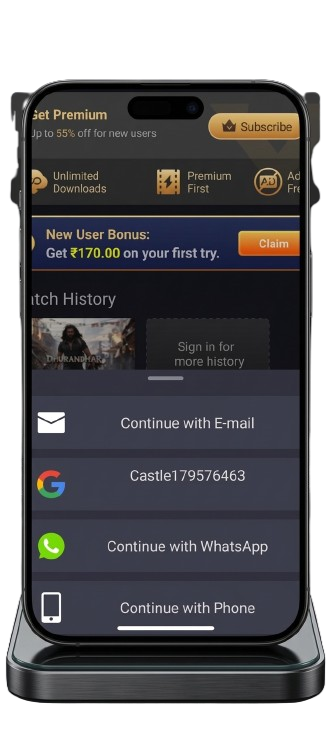
Castle APK buffering problems are one of the most common complaints among users — videos pause every few seconds, streams take too long to load, or the app lags constantly during HD playback. The good news is that most buffering issues have simple, fixable causes.
In this guide, we cover 10 proven fixes for Castle APK buffering on Android, Firestick, PC, and Smart TV. Each solution includes specific steps so you can identify the exact cause and resolve it quickly.
If your app is not opening at all rather than buffering, check our Castle APK not working fix guide first.
Quick Overview
| Problem | Most Likely Cause | Fix Number |
|---|---|---|
| Video pauses every few seconds | Slow internet speed | Fix 1, Fix 2 |
| Buffering only on HD streams | Insufficient bandwidth | Fix 5 |
| App lags on low-end phone | RAM or storage issue | Fix 7, Fix 8 |
| Buffering after update | Cache conflict | Fix 3 |
| Constant lag on Firestick | Background apps | Fix 6 |
| Server errors causing freezes | Overloaded server | Fix 4 |
Why Does Castle APK Keep Buffering?
Before applying fixes, understanding the root cause saves time. Buffering in Castle APK happens for these main reasons:
Internet-related causes are responsible for roughly 60% of buffering issues. Your connection speed may be below the minimum required for HD streaming, or your Wi-Fi signal may be weak at the location where you use the app.
Device-related causes include insufficient RAM, a full storage drive, or too many background apps consuming resources. Budget Android phones with less than 2GB RAM often struggle with 1080p streams.
App-related causes include outdated app versions, corrupted cache files from previous versions, or using a modified APK that has unstable server connections.
Server-related causes happen when Castle APK servers are temporarily overloaded during peak hours — usually evenings and weekends.
Fix 1 — Check and Improve Your Internet Speed
A slow internet connection is the single most common cause of buffering in any streaming app. Castle APK requires these minimum speeds for smooth playback:
- 3 Mbps for standard definition (480p)
- 5 Mbps for HD streaming (720p)
- 10 Mbps for Full HD streaming (1080p)
- 25 Mbps+ for 4K content
How to check your speed:
- Open your browser on the same device where Castle APK is installed
- Go to fast.com or speedtest.net
- Run a speed test and note your download speed
- If your speed is below 5 Mbps, buffering is the direct result
How to improve your speed:
- Move closer to your Wi-Fi router — even 5-10 feet can make a significant difference
- Restart your router by unplugging it for 30 seconds and plugging it back in
- Switch from mobile data to Wi-Fi, or Wi-Fi to mobile data, and compare which performs better
- Disconnect other devices from the same network during streaming — each device shares the total bandwidth
- Contact your internet provider if speeds are consistently below promised levels
Fix 2 — Switch to 5GHz Wi-Fi Instead of 2.4GHz
Most modern routers broadcast on two frequencies — 2.4GHz and 5GHz. The 2.4GHz band is slower and more congested because almost every home device uses it. The 5GHz band is faster and less crowded, which makes it significantly better for streaming.
How to switch to 5GHz:
- On your Android, go to Settings → Wi-Fi
- Look for your router name — most routers show two networks, one ending in “5G” or “5GHz”
- Connect to the 5GHz network
- Reopen Castle APK and test streaming
If your device does not show a 5GHz network, your router may only support 2.4GHz or your device does not support 5GHz connectivity. In that case, focus on Fix 1 to improve your existing connection.
Fix 3 — Clear Castle APK Cache
Cached data builds up over time and can conflict with new streaming data, causing the app to buffer or freeze. This is especially common after updating to a new version of Castle APK because old cache from the previous version remains on the device.
Clearing cache does not delete your login credentials or saved content — it only removes temporary files.
Steps to clear cache on Android:
- Open your device Settings
- Go to Apps (or Application Manager on some devices)
- Find and tap Castle APK in the list
- Tap Storage
- Tap Clear Cache
- Restart your device
- Open Castle APK and test streaming again
For Firestick users:
- Go to Settings → Applications → Manage Installed Applications
- Select Castle APK
- Tap Clear Cache
- Restart your Firestick
Clear the cache at least once every two weeks if you use Castle APK daily. This prevents buildup that gradually slows streaming performance.
Fix 4 — Switch to a Different Streaming Server
Castle APK provides multiple streaming servers for most content. When one server is overloaded — which commonly happens during evenings and on weekends — switching to a different server can instantly fix buffering without changing anything else.
How to switch servers:
- Start playing the video that is buffering
- Tap on the screen to reveal playback controls
- Look for a Server or Source option — it is usually shown as S1, S2, S3 or similar labels
- Tap a different server and wait for the stream to reload
- Test two or three servers to find the one with the best performance
If all servers buffer, the issue is likely your internet speed or device performance rather than the server.
Fix 5 — Lower Video Quality
Streaming at 1080p requires significantly more bandwidth than 720p or 480p. If your internet speed fluctuates or you are on a slower connection, forcing the app to stream at the highest quality causes constant buffering.
Lowering video quality is not a permanent compromise — it is a practical solution that delivers smooth playback over buffered high-definition content.
How to lower quality in Castle APK:
- Start playing any video
- Tap the settings or gear icon in the player
- Select Video Quality
- Switch from 1080p to 720p, or from 720p to 480p
- The stream will reload at the lower resolution — buffering should stop immediately
On a 6-inch phone screen, the visual difference between 1080p and 720p is minimal. Smooth 720p playback is a far better experience than constantly buffering 1080p.
Fix 6 — Close Background Apps
Background apps running simultaneously with Castle APK consume both RAM and internet bandwidth. On devices with 2GB or less RAM, this is a significant cause of buffering and lag.
How to close background apps on Android:
- Tap the Recent Apps button (square icon at the bottom of your screen)
- Swipe away all open apps — or tap Close All if your device shows this option
- Return to Castle APK and start streaming
For Firestick:
- Press and hold the Home button on your Firestick remote
- Select App Switcher from the menu
- Navigate to each open app and press the Menu button to close it
After closing background apps, Castle APK will have more RAM available for buffering video content smoothly.
Fix 7 — Update Castle APK to the Latest Version
Running an outdated version of Castle APK is a common but overlooked cause of buffering. Older versions may use outdated server addresses, have known streaming bugs, or lack performance improvements that newer releases include.
Castle APK version 2.1.1 is the latest release and includes specific improvements for streaming stability compared to 2.1.0 and earlier versions.
How to update:
- Download Castle APK 2.1.1 from verified download page
- Install the new APK directly over your existing installation — your data will be preserved
- If the direct install fails, uninstall the current version, restart your device, then install the new version fresh
Always download updates from trusted sources. Fake update websites often distribute modified APK files that cause worse buffering and security issues. Read our Castle APK fake update warning guide to identify scam versions.
Fix 8 — Free Up Device Storage
Castle APK needs free storage space to create temporary files while buffering video. When your device storage falls below 500MB, streaming becomes unstable because the app cannot write buffered data fast enough.
How to free up storage:
- Go to Settings → Storage on your Android device
- Check available free space — aim for at least 1GB free
- Delete apps you no longer use
- Move photos and videos to Google Photos or an external SD card
- Clear cache for other large apps like YouTube, Netflix, or Facebook from Settings → Apps
For Firestick:
- Go to Settings → My Fire TV → About → Storage
- If storage is below 1GB free, uninstall apps you rarely use
- Clear cache for other streaming apps installed on the Firestick
Fix 9 — Use an External Media Player
If Castle APK buffers on specific content but works fine on other videos, the built-in media player may be struggling to decode that particular format. Using an external player like VLC Media Player often resolves playback issues on content that the default player handles poorly.
How to set up an external player:
- Install VLC Media Player from the Google Play Store — it is free
- Open Castle APK and go to Settings
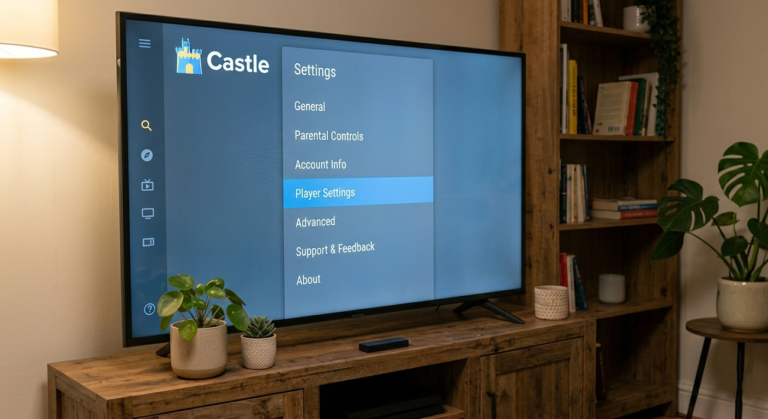
- Find the Default Player or External Player option
- Select VLC or MX Player as your default player
- Play a video — it will now open in VLC instead of the built-in player
VLC handles a wider range of video formats and uses its own decoding engine, which reduces the processing load on your device and often eliminates buffering on problematic streams.
Fix 10 — Use a Trusted VPN
In some regions, internet service providers throttle streaming traffic, which causes buffering specifically on streaming apps while general internet browsing remains fast. A VPN can bypass this throttling by encrypting your traffic so the ISP cannot identify and limit it.
Additionally, connecting to a VPN server closer to Castle APK’s streaming servers can reduce latency and improve stream loading times.
How to use a VPN with Castle APK:
- Install a trusted VPN app — avoid free VPNs as they often slow connections further
- Connect to a server in a region where streaming speeds are fast — usually USA, UK, or Singapore
- Open Castle APK and test streaming
If speeds are worse with VPN enabled, disconnect and test without it. Not all users benefit from VPN — it depends on your ISP and region.
Buffering on Specific Devices — Additional Tips
Android Phones with Less Than 2GB RAM
Low-RAM devices struggle with 1080p streaming. Set video quality permanently to 720p or 480p, always close background apps before streaming, and restart your device at least once daily to clear memory leaks.
Firestick and Fire TV
Firestick has limited RAM — usually 1GB or 1.5GB. Keep your Firestick storage above 1GB free, clear app cache weekly, and avoid running multiple streaming apps simultaneously. Restarting your Firestick once a week significantly improves streaming performance.
PC and Mac via Emulator
If Castle APK buffers when running through BlueStacks or another Android emulator, increase the RAM allocation in the emulator settings to at least 4GB. Also ensure your PC graphics drivers are updated for smoother video decoding.
Frequently Asked Questions
Why does Castle APK buffer even with fast internet? Fast internet speed alone does not guarantee smooth streaming. Castle APK buffering can still occur due to overloaded servers, outdated app versions, full device storage, or too many background apps consuming RAM. Start with Fix 4 (switch servers) and Fix 3 (clear cache) when internet speed is confirmed to be adequate.
How much internet speed do I need for Castle APK without buffering? You need at least 5 Mbps for HD streaming at 720p and 10 Mbps for Full HD at 1080p. For live sports and events with multiple viewers streaming simultaneously, 15 Mbps or more provides the most reliable experience.
Does clearing cache delete my login information? No. Clearing cache only removes temporary files that the app creates while running. Your login credentials, saved watchlist, and app settings are stored separately and are not affected by clearing cache.
Why does Castle APK buffer more at night than during the day? Evening hours are peak usage times when more users stream simultaneously, which overloads Castle APK servers. Using Fix 4 (switching servers) and lowering video quality to 720p during peak hours reduces buffering significantly.
Can a VPN fix Castle APK buffering? A VPN helps in cases where your ISP is throttling streaming traffic. If your general internet is fast but Castle APK specifically buffers, test with a VPN to see if speeds improve. However, a VPN will make things worse if your connection is already slow, since VPN adds a small overhead.
Is Castle APK buffering a sign the app is unsafe? No. Buffering is a technical performance issue unrelated to safety. However, if you experience buffering only after installing a new version, verify that you downloaded from a trusted source. Fake APK versions often have unstable server connections that cause worse buffering. Check our Castle APK safety guide to verify your installation.
Why does only certain content buffer while other videos play fine? Content-specific buffering usually means that particular video is hosted on a server with limited bandwidth. Use Fix 4 to switch to a different streaming server for that video. If the problem persists across all servers for one specific video, the content source itself may be low quality.
Final Thoughts
Castle APK buffering can almost always be fixed with the right combination of solutions. Start with checking your internet speed and clearing the app cache — these two fixes resolve the majority of buffering problems. If the issue continues, work through the remaining fixes in order until streaming is smooth.
For persistent issues after trying all fixes, make sure you are running the latest version. Read our Castle APK 2.1.1 update guide for full details on the latest release improvements.
About the Author
Himanshu B — APK Troubleshooting Researcher
Himanshu focuses on Android APK troubleshooting, app safety analysis, version comparison guides, and user-focused APK security education. He regularly researches streaming performance issues, update problems, Android compatibility, and safe installation practices for mobile users.
For more guides, visit castleapkguide.com
FAQs — Castle App Buffer Fix Guide
Q1: Why does Castle App keep buffering?
Buffering happens due to slow internet speed, server overload, or app cache buildup. Clearing cache, restarting the device, or lowering streaming quality usually fixes the issue.
Q2: How can I permanently stop buffering in Castle App?
Follow these steps: clear cache, close background apps, update to the latest version, and switch streaming quality. For unstable internet, consider using 5GHz Wi-Fi.
Q3: Is it safe to use Castle App if buffering occurs?
Yes. Buffering is a technical issue, not harmful. Avoid unofficial mods or third-party servers to ensure security.
Q4: What internet speed is needed for smooth Castle App streaming?
At least 5 Mbps is recommended for HD streaming. Lower speeds may cause constant buffering.
Q5: Can clearing cache really improve streaming performance?
Absolutely. Cache buildup slows the app. Clearing it frees memory and improves streaming speed significantly.
Q6: Why does Castle App work better on some devices than others?
Device performance, RAM, and Android version affect streaming. Older devices may experience more buffering.
Q7: Does lowering video quality reduce buffering?
Yes. Reducing streaming resolution decreases data load and helps smooth playback on slow connections.
If your app is not installing at all, check our complete Castle APK Guide on fixing the installation problem of Castle APK.